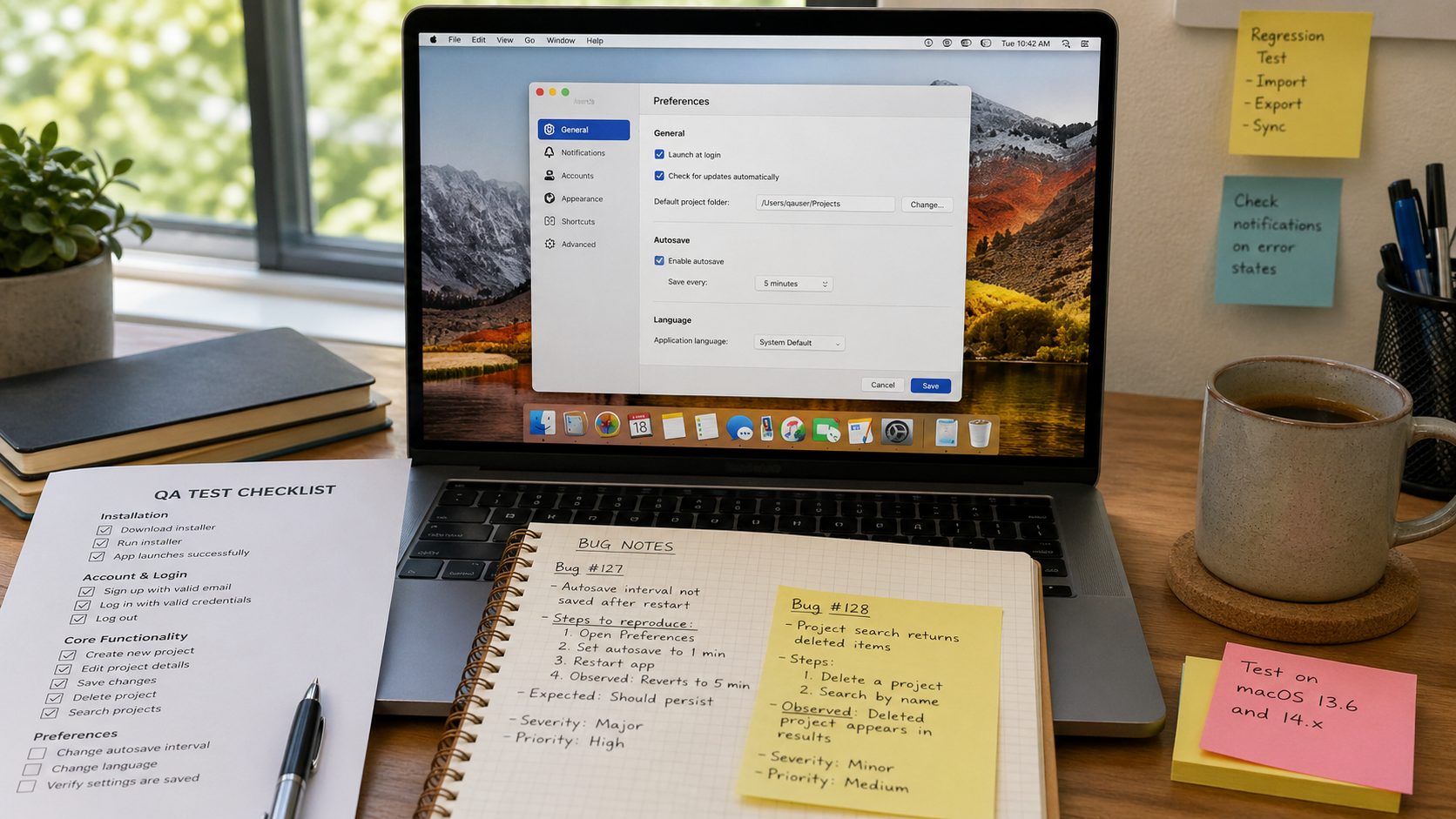
OpenAI’s Codex docs now include a use case for QA your app with Computer Use:
Click through real product flows and log what breaks.
The obvious use case is filling forms or clicking around websites. I did not expect it to become one of my better desktop QA tools.
We have been using it on Msty Claw, our Tauri desktop app, and the first few runs genuinely had me watching with my mouth open. It clicks through the app like a stubborn tester who also happens to have read the code.
The pressure point for us is simple: coding got faster. LLM agents made it easier for more people on the team to ship code, including people who would not have called themselves programmers before. One of our QA folks had a business background and opened a terminal for the first time after joining us.
Good problem to have. Still a problem. More shipped changes means more weird edges to test.
My current loop:
- Build the feature.
- Do my own quick manual pass.
- Ask the same Codex session to write a QA prompt with gotchas, edge cases, and likely failure modes.
- Send that prompt to a separate Computer Use session.
- Watch it test the real app, or go get lunch and read the report after.
This is different from old browser automation in a few ways.
First, it can operate the desktop app directly. Desktop app testing has always felt heavier than browser testing, especially when the bug depends on native windows, files, folders, permissions, or shell behavior.
Second, the agent is not blind. If I allow it, it can inspect logs, read code, look at the database, and ask follow-up questions. That makes the report much more useful than “button did not work.”
One recent run tested upcoming multiple-directory support in Msty Claw. Two small things stood out.
It started with one model, noticed tool calls were not behaving well, and switched to another one that was better at the task. I did not tell it to do that.
Then it created two folders named docs in different locations and noticed the UI became confusing because the app showed only the folder name while truncating the full path.
That second one is the kind of bug humans miss all the time. It is not a crash. The happy path still works. You only see it when the tester is being annoying in exactly the right way.
Computer Use does not replace QA. I would not trust it that way.
But for desktop apps, it gives me another tester that can run real flows, try awkward inputs, read enough code to understand intent, produce repro steps, and keep going while I am doing something else.
I am keeping that in the loop.